
How to Sell Canva Templates Online: Design, Package and Promote
Canva templates give customers a starting point they can customise for their own needs. They may be social media layouts, presentations, worksheets, media kits, planners or business documents. A template product is valuable when it saves time and makes a task easier without forcing the buyer to start from a blank page. To sell templates responsibly, creators need to think about audience fit, design usability, licensing, access instructions and the accuracy of product previews.
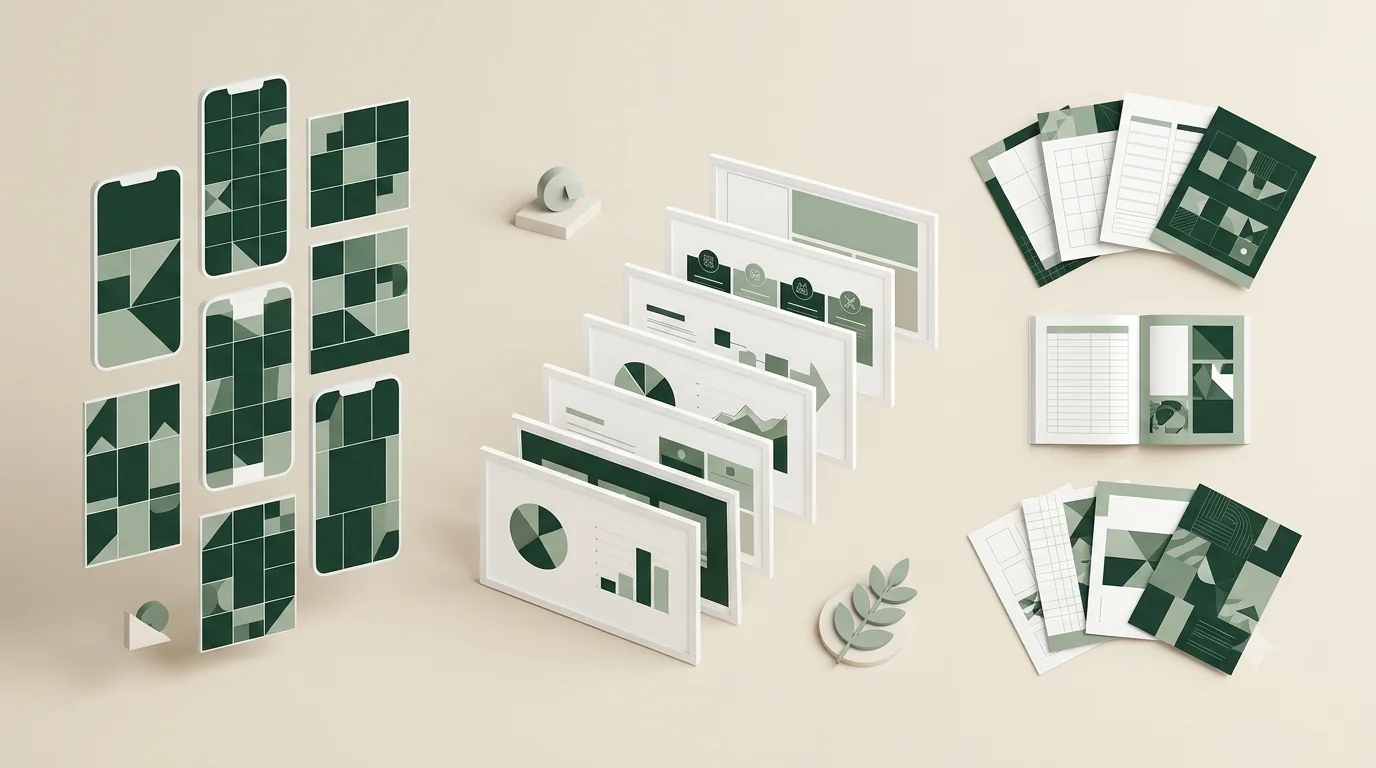
Canva templates give customers a starting point they can customise for their own needs. They may be social media layouts, presentations, worksheets, media kits, planners or business documents. A template product is valuable when it saves time and makes a task easier without forcing the buyer to start from a blank page. To sell templates responsibly, creators need to think about audience fit, design usability, licensing, access instructions and the accuracy of product previews.
1. Select a customer and a specific use case
Start by identifying who will use the template. A small business owner preparing social posts has different needs from a teacher creating classroom materials or a consultant preparing a proposal. A template designed for everyone often becomes too generic. Choose a specific user and task, then decide what information and design elements the template needs.
Consider the user's skill level. A beginner may need a simple layout and instructions; an experienced designer may prefer flexible components and more control. The best template is not necessarily the most elaborate. It is the one that helps the intended customer complete the task with less friction.
2. Research demand and existing alternatives
Look at the questions people ask and the types of templates they search for. Review existing products to understand common formats, expectations and gaps. Perhaps a popular template is difficult to customise on mobile, lacks instructions or does not account for a particular business type. Use those observations to define a useful difference.
Validate the idea before designing a large collection. Share a few concept examples, ask potential customers what they currently use and test whether they understand the proposed benefit. A clear problem statement is more useful than asking whether someone likes the colours.
3. Design a flexible and usable template
Use consistent typography, spacing, colour and alignment. Make text areas easy to edit and keep decorative elements from interfering with customisation. Use clear placeholder text that tells the buyer what belongs in each area. If the template contains multiple pages, make the visual system consistent while allowing each page to serve its purpose.
Test the template by replacing sample text and images. Check whether longer names, different photographs and alternative colour choices break the layout. Consider how the design behaves on different screen sizes. Do not assume that a template is easy to use simply because it looks polished in the creator's own account.
4. Understand licensing and content rights
Before selling a Canva-based template, review Canva's current Content License Agreement, template-specific rules and any restrictions that apply to the elements used. Licensing terms can change, and the permitted distribution method may depend on whether a design uses free or Pro content and how the template is shared. Do not treat a general online tutorial as a substitute for checking the current official terms.
Do not redistribute Canva library elements as standalone assets or imply ownership of third-party content. Use original elements or assets with appropriate rights, and check fonts, photographs, illustrations and other resources independently. If buyers need a paid Canva plan or another subscription to use particular elements, disclose that requirement clearly. When uncertain, simplify the design and seek clarification from the relevant rights holder.
5. Prepare the customer access experience
A buyer needs clear instructions for opening and using the template. Explain whether the customer receives a template link, a PDF instruction sheet or another access method. Test the link in a separate account or a private browsing session so you can see what a customer will experience. Confirm that the link does not expose your private working files or allow unintended edits to the original.
Provide a short guide with screenshots if the process is not obvious. Explain how to make a copy, replace placeholder content and export the finished design. If the template depends on a particular plan or feature, state that before purchase. Clear instructions reduce support requests and improve the customer's first experience.
6. Package the product professionally
The package may include template access instructions, a list of included layouts, a PDF quick-start guide and any permitted bonus resources. Use descriptive filenames and organise the material logically. Do not include editable source assets or third-party materials unless the rights and product description allow it.
Create a checklist for every release: links tested, permissions checked, sample content removed where necessary, instructions proofread and preview images updated. Keep a master copy of the template and a record of its version so you can maintain it later.
7. Create accurate previews
Show the actual template pages and a few examples of how customers can customise them. Include a complete overview of what is included and close-up images of important layouts. If the product includes a specific number of designs, state that number accurately. Do not use mockups that suggest extra pages, photographs or services that are not part of the purchase.
Explain what is editable and what may depend on the customer's Canva plan or third-party assets. A transparent product page helps buyers understand the product before they purchase and reduces disappointment caused by mismatched expectations.
8. Price according to utility and scope
Consider the time saved, number of useful layouts, level of customisation, target customer and quality of instructions. A focused business proposal template may have a different value from a set of social media post layouts. Do not assume that a large number of pages automatically justifies a high price.
You can create a starter pack and a larger collection, but make the distinction meaningful. Explain which additional use cases or layouts are included. If you offer a bundle, ensure the templates complement one another and do not simply repeat the same design with minor colour changes.
9. Promote through demonstrations
Show how a blank page becomes a finished design. Demonstrate how a user can replace text, adjust colours or adapt a layout for a real task. Short tutorials, before-and-after examples and practical design tips can help potential buyers understand the value.
Use content that matches the audience. A small-business creator may demonstrate a proposal workflow, while an educator may show how a worksheet can be adapted for a lesson. Include a clear link to the product page and keep the description consistent across channels.
10. Maintain templates after launch
Review customer questions and update instructions when Canva's interface or relevant features change. If a link breaks or an included element becomes unavailable, address it promptly. Keep a version history and communicate material changes to customers where appropriate.
Treat customer feedback as product research. Repeated requests for a different format, more layouts or clearer instructions can guide the next release. A small set of reliable templates with strong documentation is a better foundation than a large catalogue that is difficult to maintain.
Key takeaway: A sellable Canva template needs a defined audience, a useful workflow, licensing checks, tested access instructions and previews that accurately show what buyers receive.